
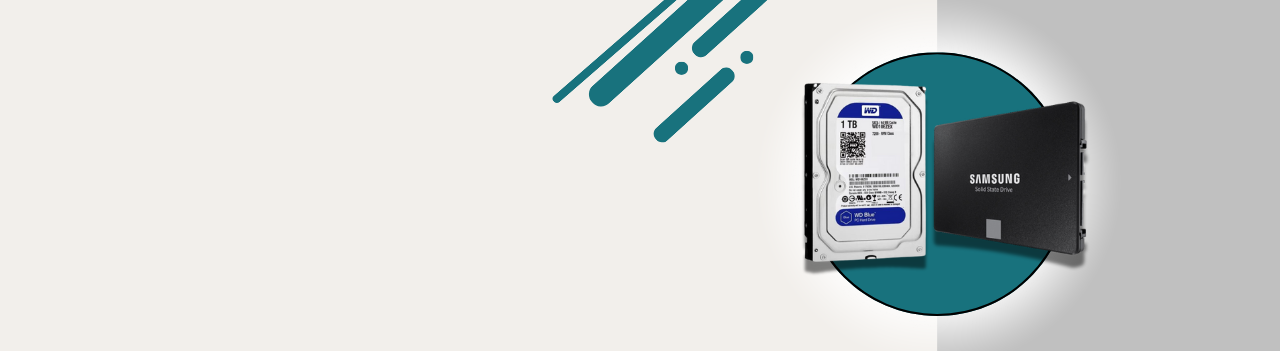
Upgrade your system’s storage with high-performance SSD & HDD options for laptops, desktops, and servers. We offer SATA, NVMe, and PCIe SSDs, along with HDDs from 128GB to 100TB, catering to end customers and bulk buyers. Choose from leading brands like Samsung, Western Digital, Seagate, Kingston, Crucial & etc for fast, reliable storage solutions.
Showing 1–16 of 107 results
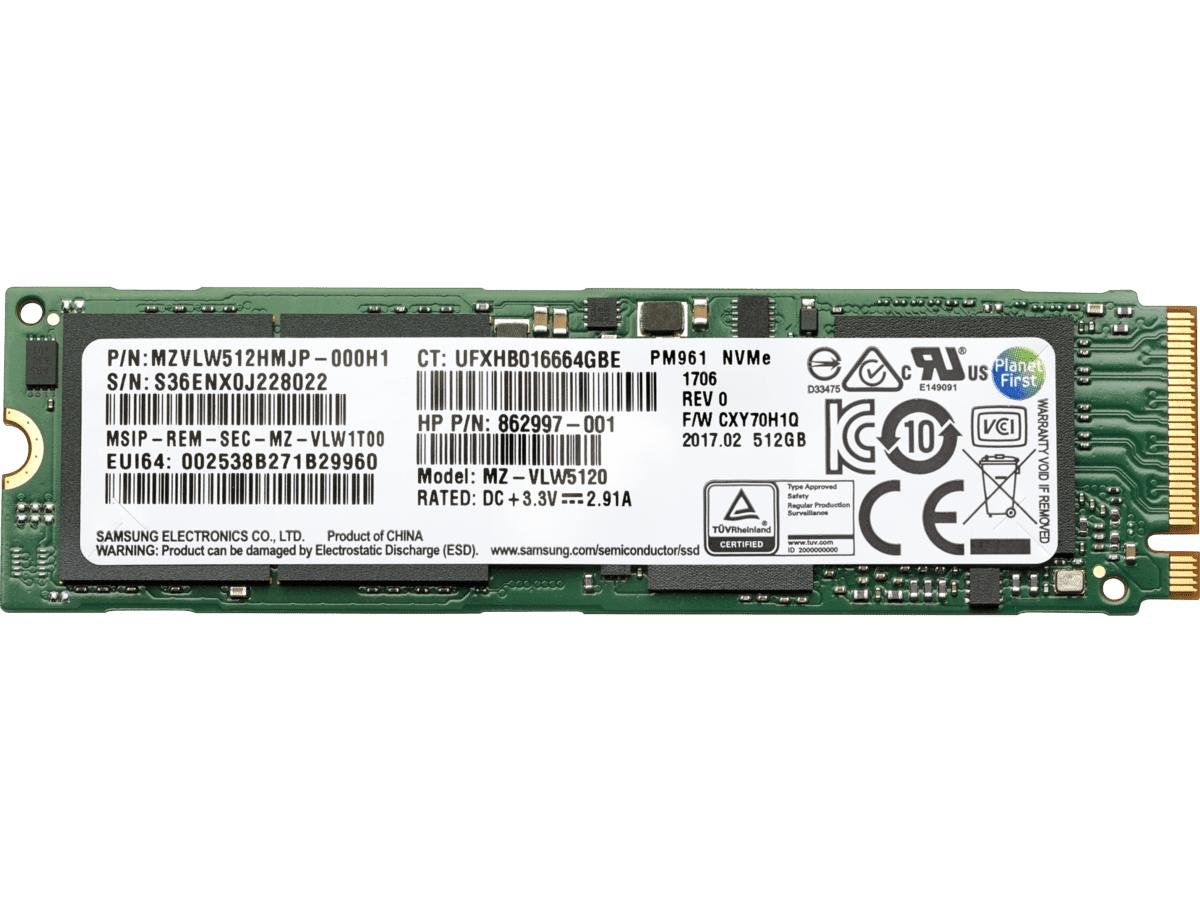
500GB NVMe SSD for Laptop/Desktop (Samsung Brand)

512GB Mini NVMe SSD for Laptop/Desktop

1TB NVMe SSD for Laptop/Desktop

512GB NVMe SSD for Laptop/Desktop
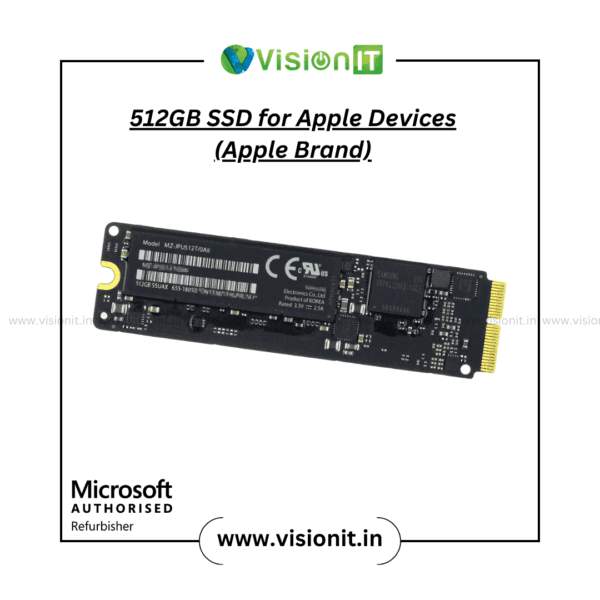
512GB SSD for Apple Devices (Apple Brand)
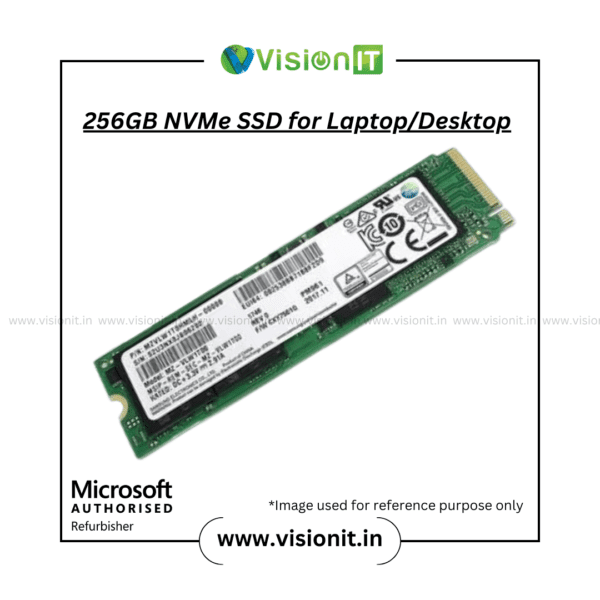
256GB NVMe SSD for Laptop/Desktop

512GB M.2 SSD for Laptop/Desktop

256GB M.2 SSD for Laptop/Desktop
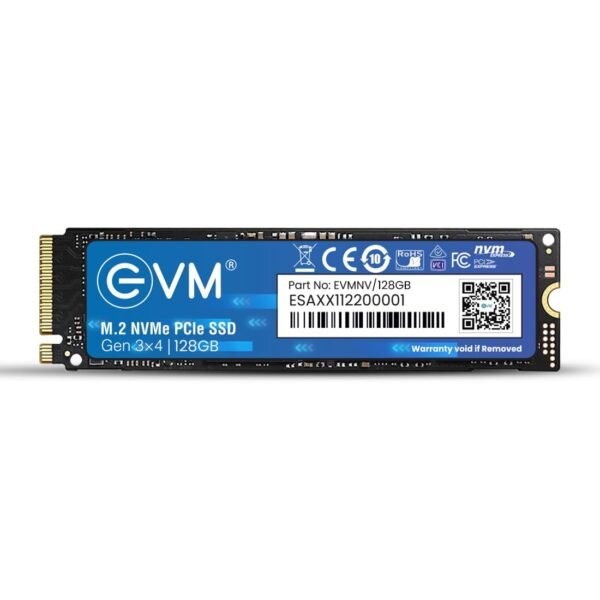
128GB NVMe PCIe SSD for Laptop/Desktop (EVM Brand)
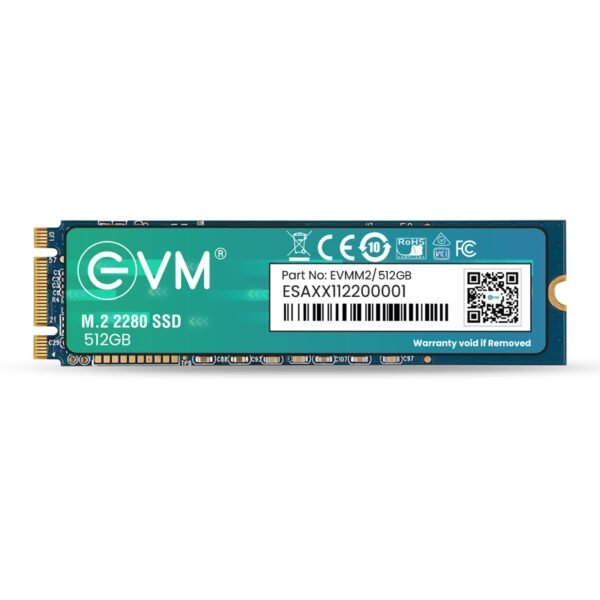
512GB M.2 (2280) SSD for Laptop/Desktop (EVM Brand)
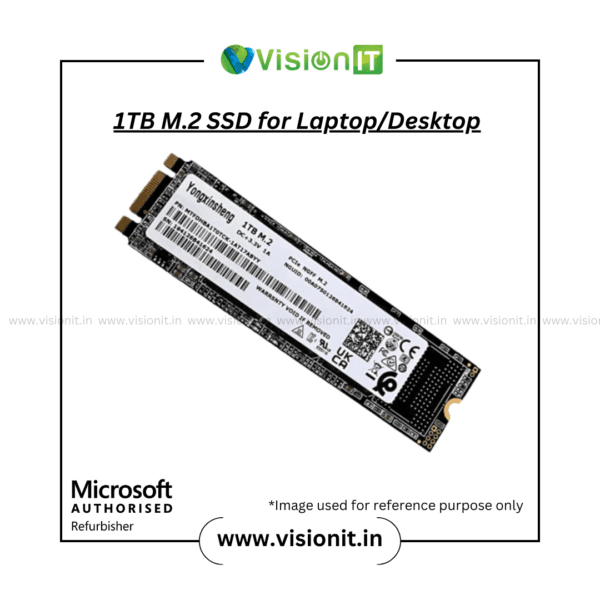
1TB M.2 SSD for Laptop/Desktop
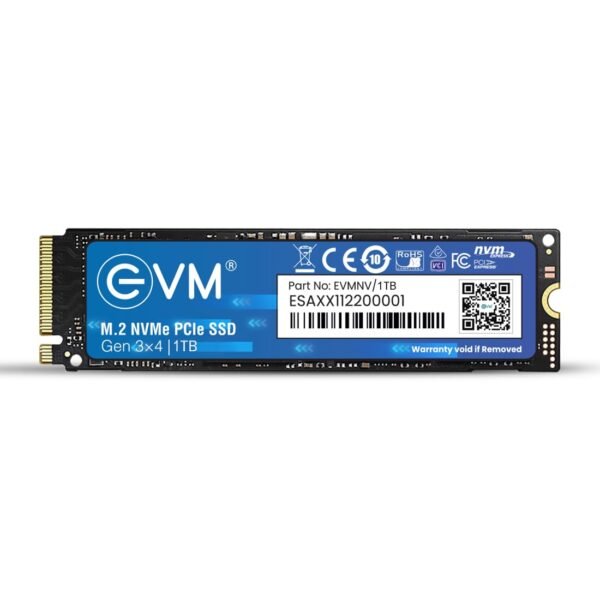
1TB NVMe PCIe SSD for Laptop/Desktop (EVM Brand)
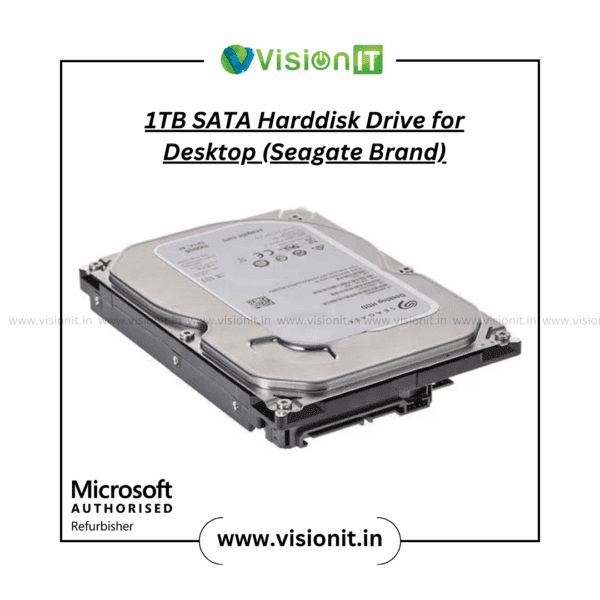

1TB SATA Harddisk Drive for Desktop (Seagate Brand)
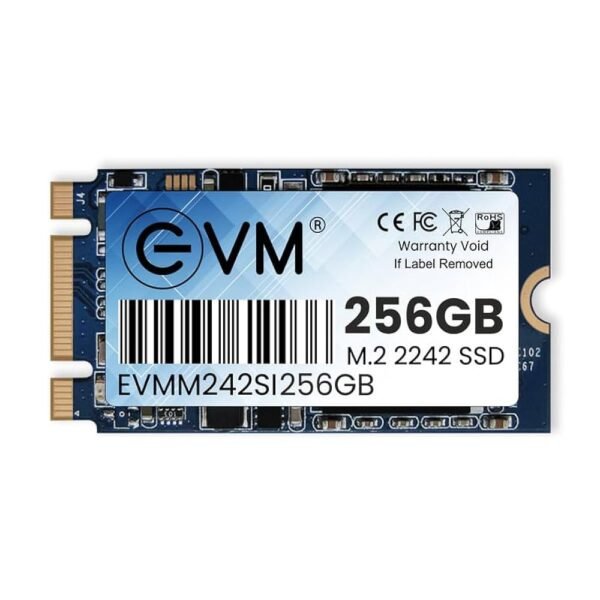
256GB M.2 (2242) SSD for Laptop/Desktop (EVM Brand)

N500 PCIe Gen 4.0 NVMe SSD 512GB (EVM Brand)
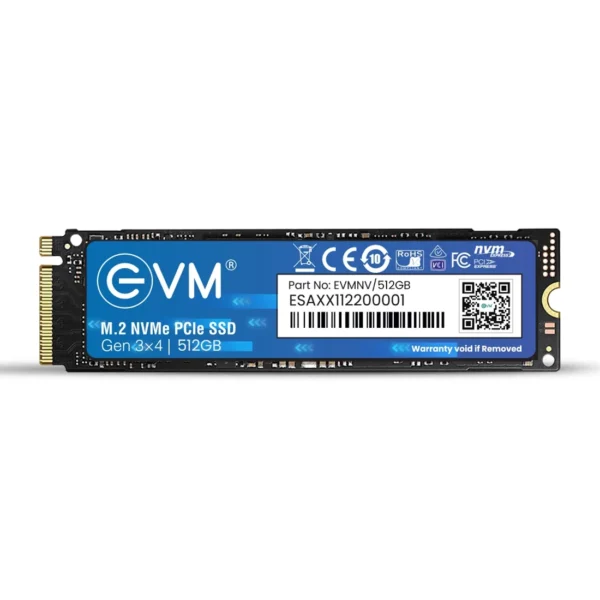
512GB NVMe PCIe SSD for Laptop/Desktop (EVM Brand)
SSD & Hard Disk for Laptop Desktop & Server
Upgrade your computer with reliable SSD & Hard Disk for Laptop Desktop & Server from Vision IT. Choose from SATA SSDs, M.2 NVMe SSDs, PCIe SSDs, internal hard drives and external storage in a range of capacities and form factors.
Whether you need a fast SSD upgrade for a laptop, choose a drive that fits your device.
If you need extra storage for a desktop, choose a drive that fits your device.
If you need a high-capacity Hard Disk for backups, choose a drive that fits your device.
If you need storage for a server, choose a drive that fits your device.
Check your device’s interface, form factor, capacity, and performance needs.
Browse the SSD and HDD products above.
Or contact Vision IT if you need help choosing compatible storage for your system.
Buy SSD & Hard Disk for Laptop, Desktop and Server
Storage affects how much data your computer can hold.
With an SSD, it also affects how fast the system opens apps and files.
Vision IT offers many storage options for PCs, business systems, workstations, and servers.
These include SATA SSDs, M.2 NVMe SSDs, PCIe SSDs, 2.5-inch drives, 3.5-inch HDDs, and external drives.
Before purchasing a drive, check your system’s supported interface, physical form factor, maximum capacity and compatibility.
SSD vs Hard Disk : Which Storage Should You Choose?
SSD
A Solid State Drive (SSD) uses flash memory and has no moving mechanical parts. People often choose SSDs for fast boot times, quick app loading, and quick file access.
- SSDs come in different formats, including:2.5-inch SATA SSD
- M.2 SATA SSD
- M.2 NVMe SSD
- PCIe SSD
- External SSD
- mSATA SSD
An SSD is a good choice for operating systems, apps, gaming, and development. It also works well for tasks that need fast storage access.
Hard Disk
A Hard Disk Drive (HDD) stores data on magnetic platters and is available in different capacities and physical sizes.
HDDs can be useful when you need:
- Large amounts of storage
- Desktop data storage
- Backup storage
- Archive storage
- Cost-effective high-capacity storage
- Compatible storage for older systems
For systems where capacity and cost per GB are more important than maximum storage speed, an HDD can still be a practical choice.
Choose the Right SSD
SATA SSD
2.5-inch SATA SSDs are widely used for upgrading compatible laptops and desktops. They are a practical replacement for older hard drives and can provide a significant improvement in system responsiveness.
Check whether your laptop or desktop supports a 2.5-inch SATA drive before purchasing.
M.2 SSD
M.2 is a physical form factor rather than a single storage protocol. M.2 drives can use different interfaces, including SATA or PCIe/NVMe.
Always check your motherboard or laptop specifications before purchasing an M.2 SSD.
NVMe SSD
NVMe SSDs use the PCIe interface and are designed for high-speed storage performance. Modern laptops, desktops, gaming PCs, and work systems often use them.
Check the PCIe generation and system support before you choose an NVMe SSD.External SSD
External SSDs provide portable storage that can be connected to compatible computers using supported interfaces such as USB.
They are useful for:
- File transfers
- Backups
- Portable work files
- Video and media projects
- Additional storage for laptops
Choose the Right HDD
2.5-Inch Hard Disk
2.5-inch hard drives are commonly associated with laptops and compact systems. Compatibility depends on the laptop or device.
3.5-Inch Hard Disk
3.5-inch HDDs are commonly used in desktop computers, storage systems and other devices designed for full-size hard drives.
They can provide large storage capacities for files, backups, media collections and other data.
External Hard Disk
External hard drives offer portable, high-capacity storage.
They help with backups, moving large files, and keeping extra copies of important data.
SSD Capacities
Choose storage capacity based on how much data you need to store and the applications you use.
128GB SSD
A 128GB SSD can work for basic operating system and app needs on compatible systems. Usable space will be less than the advertised capacity.
256GB SSD
A 256GB SSD is a practical upgrade for everyday computing, office apps, and general-use systems.
500GB / 512GB SSD
500GB and 512GB SSDs offer extra space for apps, documents, media, and games. They also keep the speed benefits of solid-state storage.
1TB SSD
A 1TB SSD suits users who need more space for apps, games, work projects, and large files. It still offers fast storage performance.
2TB SSD and Higher
Higher-capacity SSDs are useful for large app libraries, gaming, and video editing. They also help with pro work and users who need lots of fast storage.
HDD Storage Capacities
HDDs come in many sizes, so they suit systems that need lots of storage.
Capacity depends on the model and compatibility, and can range from small legacy drives to multi-terabyte options.
These larger drives work well for desktops, backups, and professional use.
For high-capacity storage, compare the drive’s interface, RPM, cache, workload suitability and compatibility rather than choosing based on capacity alone.
How to Choose the Right SSD or HDD
Before buying a storage drive, check these specifications.
1. Check the Interface
Determine whether your system supports:
- SATA
- PCIe
- NVMe
- USB for external storage
- Other manufacturer-specific interfaces
2. Check the Form Factor
Common storage form factors include:
- 2.5-inch
- 3.5-inch
- M.2
- mSATA
- External
The physical size of the drive must match the available slot or enclosure.
3. Check Capacity
Choose a capacity that fits your storage needs.
Think about space for the operating system, apps, games, files, media, and backups.
4. Check Compatibility
Not every SSD or HDD works with every laptop, desktop or server.
Check the exact model of your computer, motherboard or server and confirm the supported storage interface and form factor.
5. Check Performance Requirements
If fast app loading and file access matter, an SSD may be best.
If you mainly need large, low-cost storage for backups or archives, an HDD may be better.
NVMe vs SATA SSD
NVMe and SATA SSDs use different interfaces.
SATA SSDs work with most systems that support SATA storage. They are a practical upgrade for computers that used SATA hard drives.
NVMe SSDs use PCIe and can provide significantly higher storage bandwidth on compatible systems.
However, installing an NVMe SSD requires a compatible M.2 or PCIe interface. An M.2 slot does not automatically mean that every NVMe or SATA M.2 drive will work.
Always verify the motherboard or laptop specifications before purchasing.
SSD vs HDD for Different Uses
| Use Case | Recommended Storage |
|---|---|
| Faster operating system | SSD |
| Faster application loading | SSD |
| Gaming | SSD |
| Video editing | SSD, depending on workload |
| Office applications | SSD |
| Large file archive | HDD |
| Backup storage | SSD or HDD depending on capacity and budget |
| High-capacity desktop storage | HDD |
| Portable high-speed storage | External SSD |
| Portable high-capacity storage | External HDD |
Storage for Laptops
A laptop storage upgrade can improve the responsiveness of an older system, but compatibility must be checked before purchasing.
Depending on the laptop, storage may use:
- 2.5-inch SATA
- M.2 SATA
- M.2 NVMe
- mSATA
- Manufacturer-specific storage
Some modern laptops also use soldered or non-upgradeable storage configurations.
If you share your laptop’s exact model number, Vision IT can help find the right storage type.
Storage for Desktops
Desktop computers generally provide more flexibility for storage upgrades.
Depending on the motherboard and case, a desktop may support:
- 2.5-inch SATA SSD
- 3.5-inch HDD
- M.2 NVMe SSD
- PCIe storage
- Multiple storage drives
For a desktop upgrade, check the available motherboard connectors, drive bays, power connections and supported storage interfaces.
Storage for Servers and Workstations
Servers and professional workstations can have different storage requirements from standard consumer computers.
Before purchasing server storage, check:
- Drive interface
- Form factor
- Drive bay compatibility
- Capacity
- Workload requirements
- RAID requirements
- Server manufacturer specifications
- Hot-swap requirements where applicable
For business-critical systems, select storage based on the server’s documented compatibility and workload requirements rather than capacity alone.
SSD and HDD Brands Available
Vision IT stocks storage products from a range of manufacturers depending on current availability.
Brands in this category include Samsung, Western Digital, Seagate, Crucial, Kingston, Toshiba, SanDisk, and Apple. Other products are also available.
When comparing drives, consider the exact model’s interface, capacity, performance specifications and warranty rather than choosing only by brand.
Why Buy SSD & HDD from Vision IT?
Vision IT provides storage solutions for individual users, businesses, resellers and organizations.
Depending on the product, customers can choose new or refurbished storage.
They can also choose different sizes, interfaces, and form factors.
Vision IT also helps customers find compatible storage options.
This includes storage for laptops, desktops, and professional systems.
Frequently Asked Questions
Which is better, SSD or HDD?
An SSD is usually best when you need a faster system. It improves app loading and file access.. HDDs can be useful when you need high-capacity storage at a lower cost per GB.
Is an SSD better for a laptop?
An SSD is a great upgrade for a compatible laptop. It can speed up startup and app load times. This is faster than a traditional hard drive.
However, the correct SSD depends on the laptop’s supported storage interface and form factor.
What is the difference between SATA SSD and NVMe SSD?
SATA SSDs use the SATA interface, while NVMe SSDs use PCIe and the NVMe protocol. NVMe drives can provide substantially higher bandwidth on compatible systems.
Can I install an NVMe SSD in any laptop?
No. The laptop must have a compatible M.2 PCIe/NVMe interface. An M.2 slot alone does not guarantee NVMe compatibility.
What size SSD should I buy?
The right capacity depends on your workload. 256GB can work for basic use, while 500GB/512GB, 1TB or larger capacities provide more space for applications, games and large files.
Is a 1TB SSD enough for gaming?
A 1TB SSD offers enough space for an operating system and several modern games.
Still, the storage you need depends on your game library size and other files.
What is the difference between a 2.5-inch and 3.5-inch HDD?
2.5-inch HDDs are smaller and often used in laptops and small systems.
3.5-inch HDDs are often used in desktop computers and large storage systems.
Can I use an SSD and HDD together?
Yes, on compatible computers you can use an SSD and HDD together. For example, you can use an SSD for the operating system and apps. An HDD can provide extra storage with high capacity.
How do I know which SSD or HDD will work with my computer?
Check your laptop, desktop or motherboard model and identify the supported storage interface and form factor. If you are unsure, share your system model with Vision IT before purchasing.
Do SSDs and HDDs come with a warranty?
Warranty coverage depends on the specific product and manufacturer. Check the individual product listing for the applicable warranty terms before purchase.
Need Help Choosing the Right Storage?
Not sure whether your laptop needs a 2.5-inch SATA SSD, M.2 NVMe SSD, HDD or another storage type?
Share your laptop model, desktop model, motherboard or server model with Vision IT. Our team can help you choose the right storage interface, form factor, and capacity.
Browse the available SSD and HDD products above and choose the storage solution that matches your system and workload.
